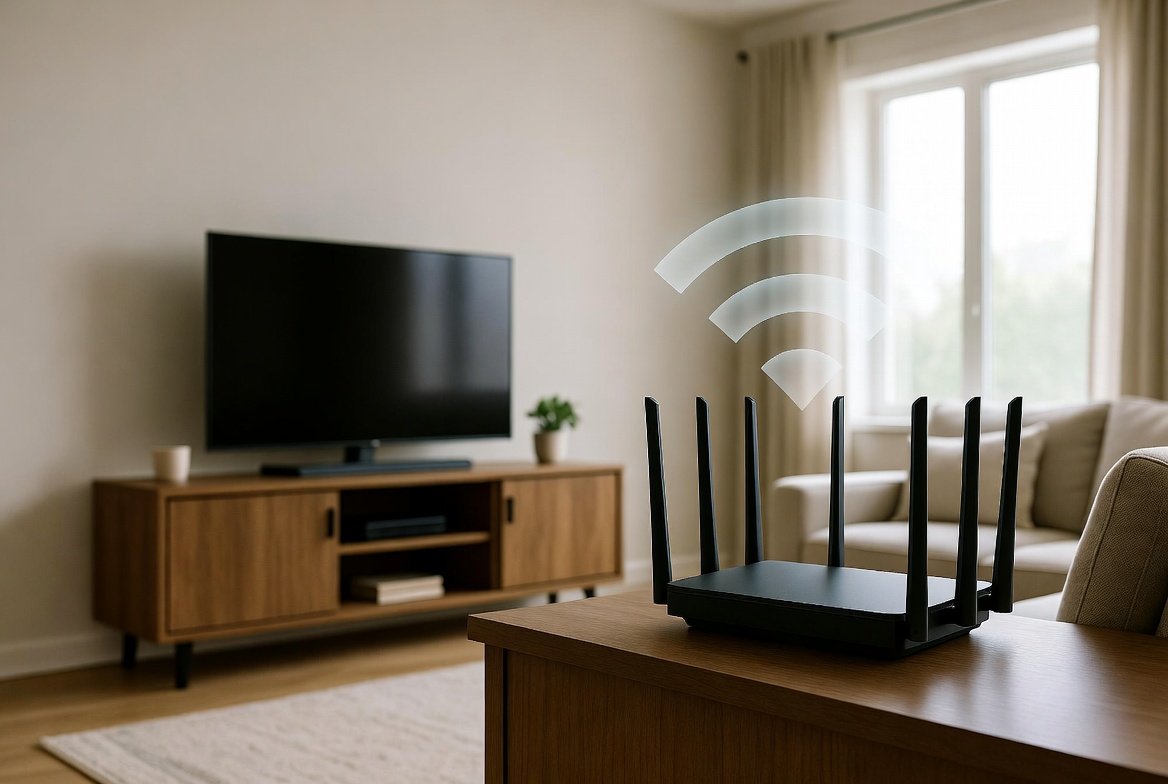
A secret WiFi network hides your network name (SSID) from everyday device scans by disabling “SSID broadcast” in your router’s wireless settings. Devices can still connect, but only if someone manually enters the exact network name and password. It’s a privacy layer, not real security — pair it with WPA2/WPA3 encryption and a strong password.
A secret WiFi network keeps your home connection from appearing in everyday device scans. On most routers, you can hide the network name (SSID) so only devices that already know the exact name and password can join. This guide walks through practical, router-based steps that work for typical American households.
Key Takeaways
- Hiding the SSID stops the network from showing up in normal WiFi scans, but doesn’t encrypt anything on its own
- It’s a visibility control, not full security — determined users with WiFi analysis tools can still find hidden networks
- The setup takes about five minutes on any modern router and works the same way across most brands
- Every device needs the exact name and password re-entered manually after the change
What a Secret WiFi Network Actually Is
A secret WiFi network is a wireless network whose SSID broadcast is turned off. The network still exists and functions normally, but it doesn’t announce its name to nearby devices — users must manually enter the exact network name and password to connect.
This is different from a guest network (which usually stays visible) or a VPN (which encrypts traffic after the connection is already made). Hiding the SSID is a visibility control, not full encryption. It works best paired with strong WPA2 or WPA3 security, a complex password, and routine firmware updates. Most current consumer routers sold in the United States support this feature in their wireless settings.
Real-World Scenarios
Different households hide their WiFi network for different reasons. Here’s how the approach typically varies:
| Household / User Type | Primary Goal | Best Approach | Typical Device Count | Notes |
|---|---|---|---|---|
| Light users (streaming, email, browsing) | Reduce neighbor visibility | Single hidden SSID on main router | 2–5 | Simplest setup |
| Family with school-age children | Separate kids’ devices from main network | Second hidden SSID or isolated guest network | 6–12 | Easy parental controls |
| Remote workers or hybrid professionals | Keep work devices off the main SSID | Dedicated hidden 5 GHz network + VPN | 3–7 | Improves focus and basic separation |
| Smart-home heavy users | Isolate IoT cameras, lights, speakers | Hidden guest network with client isolation | 10+ | Limits lateral movement if a device is compromised |
| Shared housing or roommates | Limit casual discovery of the primary network | Hidden main SSID + visible limited guest network | Varies | Clear house rules help |
In every case, the core technique is the same: disable SSID broadcast and require manual connection.
Step-by-Step: Creating a Secret WiFi Network on a Home Router
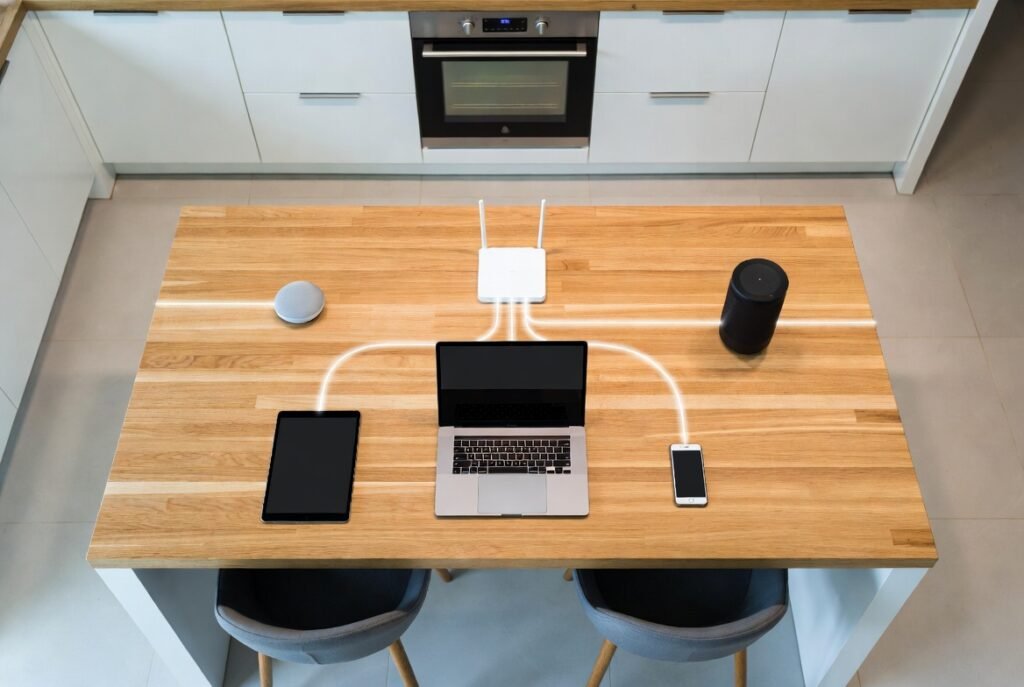
Most households use a single ISP-provided or retail router (Netgear, TP-Link, ASUS, Google Nest, Eero, Arris, and others). The process is similar across brands.
1. Connect and log in
Open a browser on a device already connected by Ethernet or the current WiFi. Type the router’s admin address — commonly 192.168.1.1, 192.168.0.1, or 10.0.0.1. Check the sticker on the router or the ISP app if you’re unsure. Enter the admin username and password.
2. Locate wireless / WiFi settings
Look for “Wireless,” “Wi-Fi,” “SSID,” or “Advanced Wireless.” Many modern routers also offer a mobile app that mirrors these options.
3. Create or edit the network
- Set a unique SSID (the network name). Avoid generic names like “Home” or the router brand.
- Disable “Broadcast SSID,” “Enable SSID Broadcast,” or “Hide SSID” — the exact wording varies by brand.
- Choose WPA2-Personal or WPA3-Personal (WPA3 preferred when available).
- Enter a strong passphrase — at least 12 characters mixing letters, numbers, and symbols.
- Select the desired band (2.4 GHz for range, 5 GHz for speed, or both if the router supports multi-SSID).
4. Save and apply
Click Apply or Save. The router may briefly restart the wireless radio. Existing devices will lose the connection until you reconnect them manually.
5. Connect devices manually
On each phone, laptop, or tablet:
- Go to WiFi settings.
- Choose “Other network,” “Add network,” or “Join other network.”
- Type the exact SSID and password.
- Confirm the security type matches (WPA2/WPA3).
6. Optional hardening steps
- Enable MAC address filtering if your router supports it (add only trusted device addresses).
- Place the secret network on the 5 GHz band only, to reduce range and casual discovery.
- Turn on automatic firmware updates, or check for updates monthly.
For mesh systems (Eero, Google Nest, Orbi), the same options usually appear under “Network settings” or “Advanced” in the companion app. Some ISP gateways lock advanced features — in those cases, a secondary travel router or access point set to bridge mode can create the secret WiFi network instead.
Practical Tips and Common Mistakes
Tips that improve reliability
- Write down the exact SSID and password in a secure password manager or printed note kept offline
- Test the connection from every room after setup — hidden networks sometimes need a slight channel adjustment for best coverage
- Combine the secret WiFi network with client isolation (available on most guest networks) if the goal is keeping IoT devices from talking to each other
- Reboot the router after major changes and verify new devices can still join
- Review the list of connected clients every few weeks through the router interface
Common mistakes to avoid
- Assuming a hidden SSID equals strong security — determined users with WiFi analysis tools can still detect the network, so treat it as one layer, not the only layer
- Using a short or obvious SSID and password — the name itself becomes a secret that must stay private
- Forgetting to update devices after the change — smart TVs, printers, and game consoles often need the network re-entered manually
- Leaving the default admin password on the router — change it immediately
- Enabling both 2.4 GHz and 5 GHz hidden SSIDs with the same name without checking band-steering behavior — some devices struggle to choose the correct band
Conclusion
A secret WiFi network is a simple, free adjustment available on nearly every modern home router sold in the United States. By turning off SSID broadcast, applying strong encryption, and following the steps above, households gain an extra layer of privacy against casual discovery. The technique works equally well for light users who just want fewer visible networks and for families or remote workers who need clearer separation between devices. Pair it with good password habits and regular router maintenance for the best results.
FAQs
Is a secret WiFi network completely invisible?
No. It won’t appear in standard device scans, but specialized WiFi monitoring tools can still detect it. It’s a useful privacy step, not true invisibility.
Will my devices reconnect automatically after I hide the SSID?
Only if they already know the exact name and password, and the router’s settings allow it. Most devices require a one-time manual entry after the change.
Does hiding the SSID slow down my internet?
No. The performance impact is negligible. Speed is determined by your ISP plan, router hardware, and wireless interference — not by whether the name is broadcast.
Can I still use a guest network with a secret WiFi network?
Yes. Many routers let you run a visible guest network alongside a hidden main network, or hide both. Check your router’s multi-SSID options.
What if my ISP gateway doesn’t allow hiding the SSID?
Place a secondary router or travel router behind the gateway in bridge or access-point mode, and configure the secret WiFi network on the secondary device.
Leave a Reply