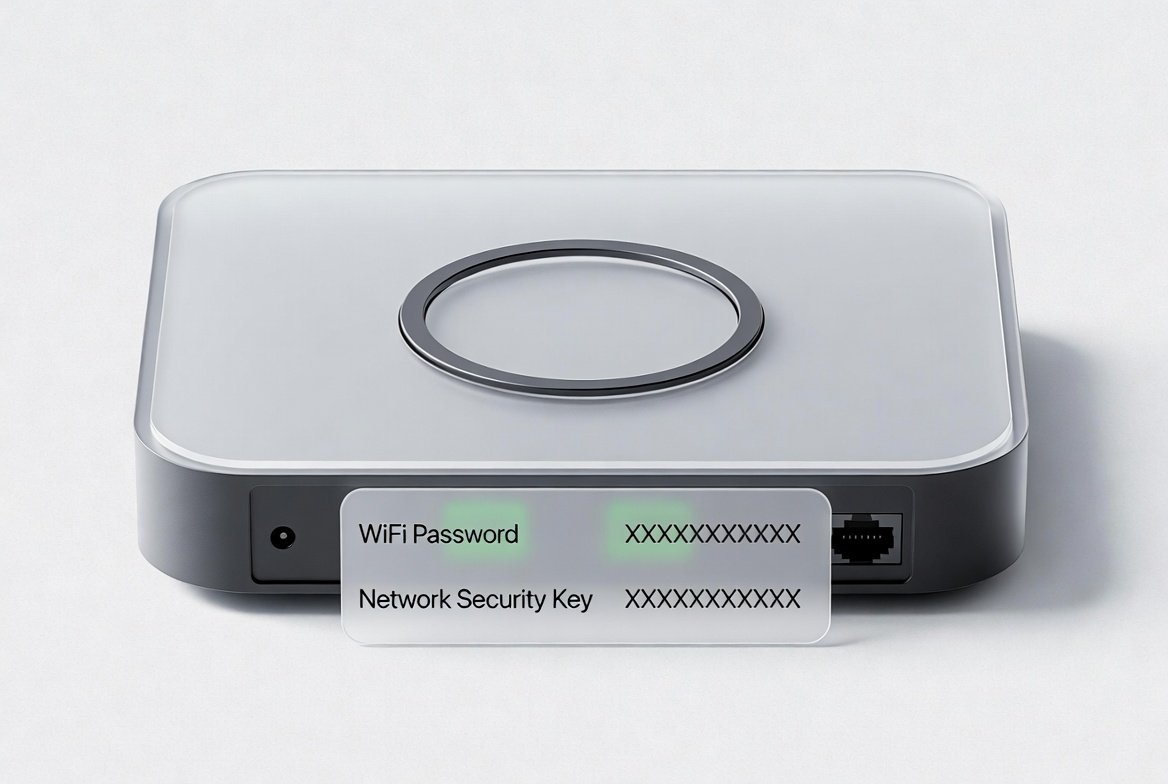
Your network security key is your WiFi password. The fastest way to find it: check the sticker on the bottom of your router for the default, or check a device already connected to the network — Windows (Manage known networks), Mac (Network > Wi-Fi > Advanced), or your phone’s share feature — for the current password if it’s been changed.
Your network security key is the password that protects your WiFi network. When a new device asks for it, or you forget the code, you need a reliable way to locate it quickly. This guide shows U.S. users exactly how to find the network security key on routers, Windows PCs, Macs, and phones using built-in tools only — no third-party software required.
Key Takeaways
- A network security key is the same thing as a WiFi password, WPA key, WPA2 key, or WPA3 key
- The router sticker only shows the default key — if it’s ever been changed, check a connected device instead
- Windows, Mac, iPhone, and Android all have built-in ways to view or share a saved WiFi password
- Resetting the router restores the sticker default but disconnects every device, so try a lookup first
What Is a Network Security Key?
A network security key is the password required to join a secured WiFi network. It’s also called the WiFi password, WPA key, WPA2 key, WPA3 key, or wireless security key — these terms are used interchangeably.
Most home routers from major U.S. providers (Xfinity, Spectrum, AT&T, Verizon, and others) ship with a default network security key printed on a sticker. Once that password is changed, the new key is stored on every device that has successfully connected, plus the router’s admin settings — the sticker no longer reflects the active password.
The key relies on encryption standards (WPA2 or WPA3 on current equipment) to keep neighbors and strangers off your network and away from your traffic. Finding it never requires special software — only the steps below.
Real-World Scenarios: When You Need the Network Security Key
Different households run into this problem for different reasons. Here’s the fastest place to look first, by situation:
| Household / User Type | Typical Situation | Best First Place to Look | Expected Time |
|---|---|---|---|
| Light user (1–2 people) | Connecting a new tablet or smart speaker | Router sticker or an already-connected Windows/Mac device | 1–2 minutes |
| Standard family (3–4 people) | Guest needs the password or a child’s new phone | Share feature from an already-connected phone or PC | Under 1 minute |
| Remote-work household | Adding a work laptop or secondary monitor setup | Windows Settings or Mac System Settings (saved networks) | 2–3 minutes |
| Multi-device / smart-home household | Multiple new IoT devices after a router reset | Router sticker or provider app (Xfinity, Spectrum, etc.) | 3–5 minutes |
Light users rarely change the default key, so the router sticker usually works. Families and remote workers benefit most from checking a device that’s already connected, since it’s typically the fastest path to the current password.
Step-by-Step: How to Find Your Network Security Key
1. Check the Router Sticker (Fastest Method for Default Keys)
Look on the bottom or back of your modem/router gateway. You’ll see a label with one of these names:
- WiFi Password
- Network Key
- WPA Key
- Security Key
- Wireless Password
This is the default network security key — it works until someone changes it in the router settings. Major U.S. provider gateways (Xfinity xFi, Spectrum, AT&T, Verizon) all use this sticker format.
2. Find It on a Windows 11 PC (Already Connected)
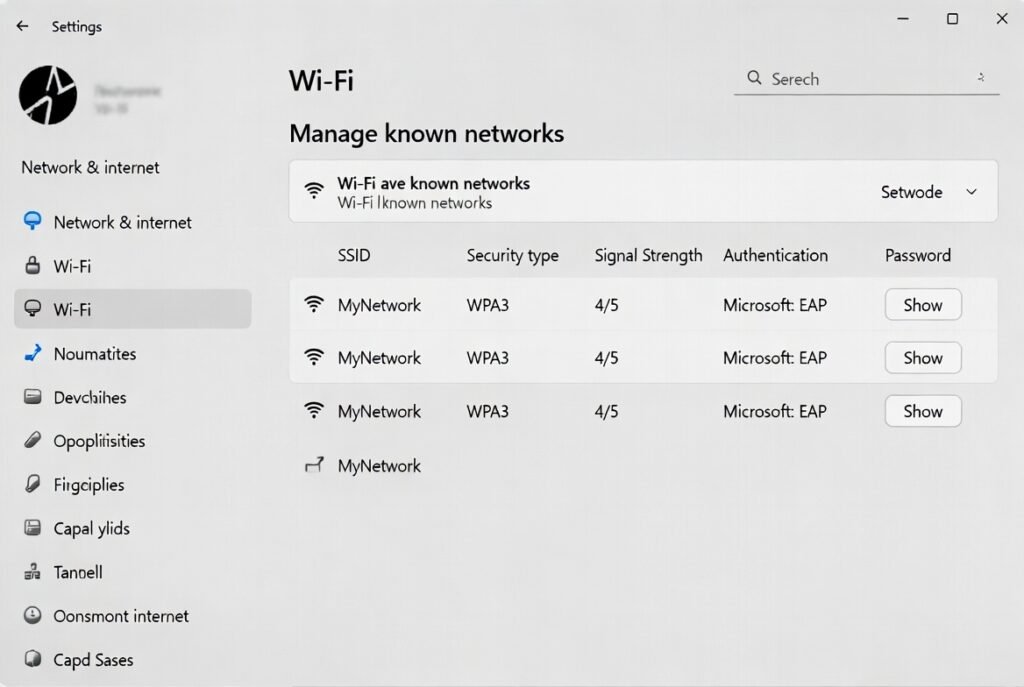
- Open Settings > Network & internet > Wi-Fi.
- Select Manage known networks.
- Click the network name.
- Next to “Wi-Fi network password,” select Show or View.
Alternative Control Panel method: Network and Sharing Center > click the network name > Wireless Properties > Security tab > check “Show characters.”
Command-line option (works on Windows 10 and 11): Open Command Prompt as administrator and type: netsh wlan show profile name="YourNetworkName" key=clear
The key appears under “Key Content.”
3. Find It on a Mac
macOS Ventura and later (including Sequoia):
- Open System Settings > Network > Wi-Fi.
- Click Advanced.
- Click the three-dot button next to the network and choose Copy Password.
Or open the Passwords app > select Wi-Fi in the sidebar > choose the network > hover over or click to reveal the password.
Older method (still available): Open Keychain Access, search for the network name, double-click it, check “Show password,” and enter your Mac login password.
4. Find or Share From an iPhone or Android Phone
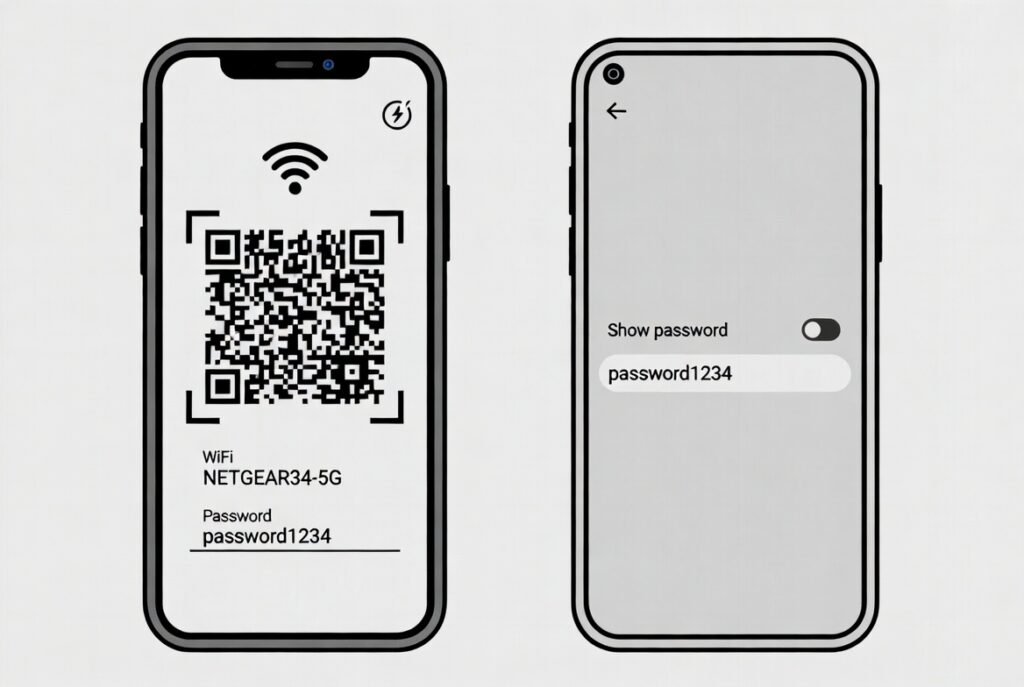
iPhone (iOS 16 and later): Go to Settings > Wi-Fi > tap the information icon next to the network. On a nearby Apple device already connected, the password-sharing prompt appears automatically when the new device tries to join.
Android (most recent versions): Open Settings > Network & internet > Internet (or Wi-Fi) > tap the gear icon next to the network > Share. A QR code appears; the password is often shown below it, or can be viewed after authenticating.
If your phone is already connected, the share feature is usually the quickest way to give the network security key to a new device — no typing required.
5. Log Into the Router Admin Page
- Connect a device to the network (wired or wireless).
- Open a browser and enter the gateway address (commonly
192.168.1.1,192.168.0.1, or10.0.0.1). - Log in with the admin username and password printed on the router sticker.
- Navigate to Wireless / Wi-Fi / Security settings — the current network security key is displayed there.
Provider apps (Xfinity, Spectrum, AT&T Smart Home Manager, Verizon) also show the current WiFi password once you sign in with your account.
Practical Tips & Common Mistakes
Tips that actually work
- Write the current network security key in a secure note or password manager the moment you change it
- After a router reset, the key returns to the sticker default — update every device afterward
- Use the share feature from a phone already on the network; it avoids typing long random strings
- Test the key on one device before updating smart-home gadgets, to avoid mass reconnection work
- Keep router firmware updated through the provider app so security settings stay accessible
Common mistakes
- Assuming the sticker is always current — once the password is changed, the sticker shows only the old default
- Typing the network name (SSID) instead of the security key
- Checking only the phone when a Windows or Mac computer already has the saved key
- Confusing the admin login password (for the router page) with the WiFi network security key
- Resetting the router unnecessarily when a simple lookup on a connected device would have worked
Conclusion
Locating your network security key is straightforward once you know where it lives: the router sticker for defaults, saved-network settings on Windows and Mac, the share feature on phones, and the router admin page or provider app for the current password. Start with a device that’s already connected — it almost always has the answer in under a minute. Keeping a secure record of the key, and avoiding unnecessary router resets, will save time the next time a new device or guest needs access.
FAQs
Is the network security key the same as the WiFi password?
Yes. Network security key, WiFi password, WPA key, and wireless key all refer to the same code that unlocks your secured WiFi network.
What if the sticker password no longer works?
Someone changed it. Use a computer or phone already connected to the network to view the current key, or log into the router admin page or provider app.
Can I find the network security key if no device is connected?
Only if you still have the default sticker password, or can connect with an Ethernet cable and reach the router admin page. Otherwise, you may need to reset the router, which restores the sticker default.
Does the method work the same for Xfinity, Spectrum, AT&T, and Verizon?
Yes. All major U.S. providers place the default key on a sticker and allow viewing the current key through their app or the router’s web interface.
Is it safe to share the network security key with guests?
Yes, for temporary access. After guests leave, you can change the key in the router settings if you want tighter control.
Leave a Reply