

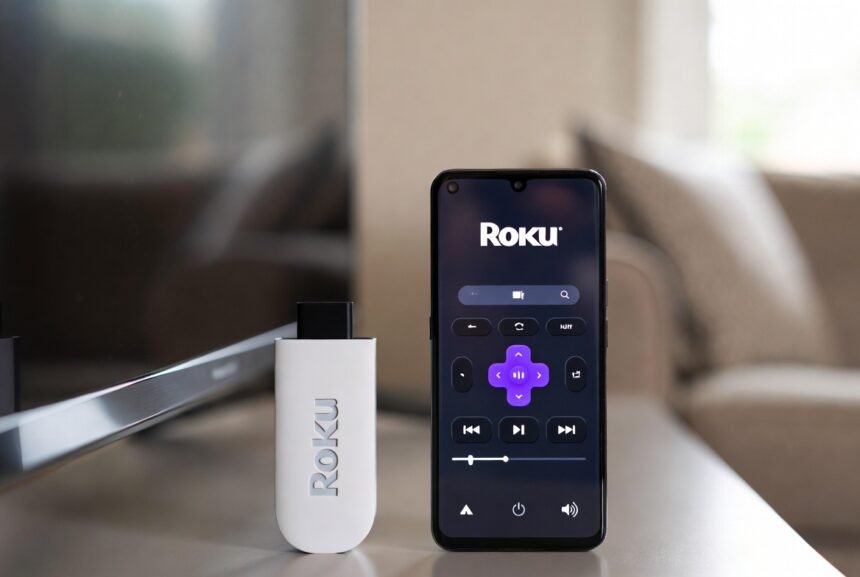
Losing your Roku remote doesn’t mean losing access to streaming. The free official Roku mobile app, combined with a couple of proven workarounds, can get most households back online without buying a replacement remote right away.
- Key Takeaways
- Understanding the Challenge
- Which Method Fits Your Situation
- Method 1: Use the Roku Mobile App (If the Roku Is Already Online)
- Method 2: Mobile Hotspot Matching (Most Reliable for an Offline Roku)
- Method 3: Ethernet Cable (If Your Model Supports It)
- Method 4: Temporary Router SSID Change
- Tips That Improve Success Rates
- Conclusion
- FAQ
Key Takeaways
- The Roku app only works if your phone and Roku are already on the same Wi-Fi network — if the Roku is offline, the app can’t detect it.
- Mobile hotspot matching is the most reliable fix for an offline Roku: set a phone’s hotspot name and password to exactly match the Roku’s last known network, and it reconnects automatically.
- Most Roku streaming sticks lack an Ethernet port — that option is mainly available on Roku Ultra models or via a USB-to-Ethernet adapter.
- Exact SSID and password matching is non-negotiable for the hotspot method — capitalization and special characters all have to match.
- A brand-new, never-networked Roku still needs a remote or Ethernet for initial setup; the app can’t detect a device that has never joined a network.
Understanding the Challenge
Roku devices need a Wi-Fi connection to stream and receive updates, and the physical remote is normally how you navigate the on-screen menu to select a network. Without it, the free Roku mobile app (iOS and Android) can act as a full virtual remote — but only under specific conditions.
The app can only find a Roku that’s already on the same Wi-Fi network as your phone. If the Roku is offline — a new setup, a factory reset, or a network change — the app simply won’t detect it. In those cases, matching a temporary hotspot to the Roku’s last known network, or plugging in an Ethernet cable, becomes necessary.
Which Method Fits Your Situation
| User Type | Typical Situation | Best Method | Time Estimate | Notes |
|---|---|---|---|---|
| Light user (apartment renter, single person) | Occasional streaming, limited tech setup | Mobile hotspot matching | 10–15 min | Needs the old network name and password |
| Family with kids | Multiple devices, frequent network changes | Roku app if already online; hotspot otherwise | 8–12 min | Keep a second phone handy |
| Senior living alone | Prefers simple steps, may not recall passwords | Ethernet (if supported) or hotspot | 10–20 min | Write down credentials ahead of time |
| Remote worker / heavy streamer | Needs a reliable 4K connection quickly | Ethernet, then switch to Wi-Fi | 5–10 min | Fastest option if a port is available |
| College student | Shared housing, frequent moves | Temporary router SSID change | 15–20 min | Coordinate with roommates first |
Knowing your previous network credentials, or having access to an Ethernet port, makes this dramatically easier no matter which household type you’re in.
Method 1: Use the Roku Mobile App (If the Roku Is Already Online)
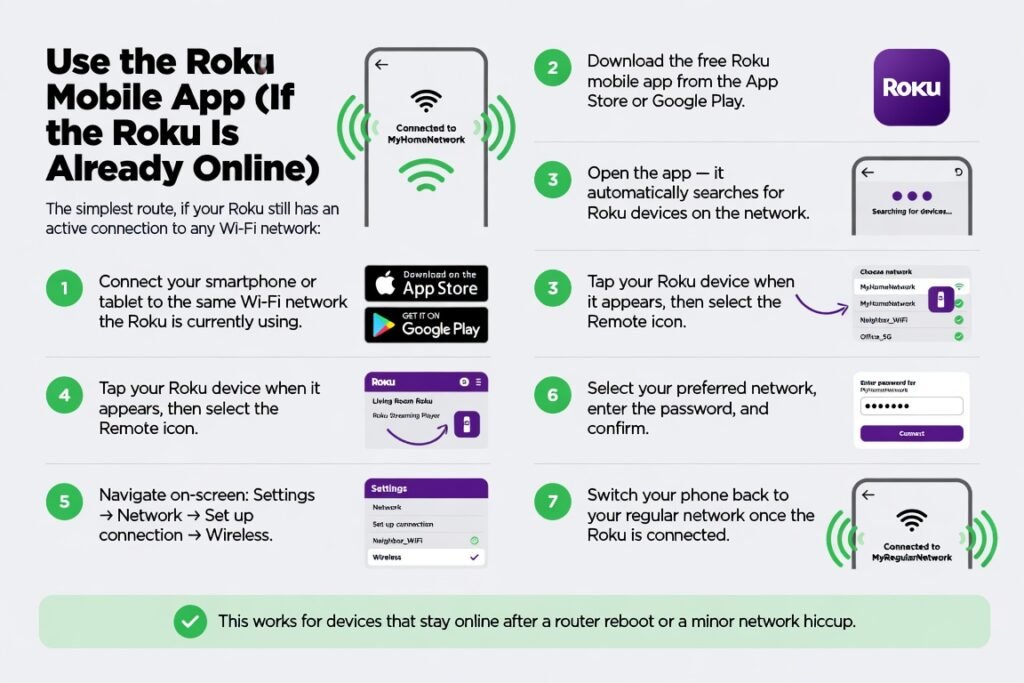
The simplest route, if your Roku still has an active connection to any Wi-Fi network:
- Connect your smartphone or tablet to the same Wi-Fi network the Roku is currently using.
- Download the free Roku mobile app from the App Store or Google Play.
- Open the app — it automatically searches for Roku devices on the network.
- Tap your Roku device when it appears, then select the Remote icon.
- Navigate on-screen: Settings → Network → Set up connection → Wireless.
- Select your preferred network, enter the password, and confirm.
- Switch your phone back to your regular network once the Roku is connected.
This works for devices that stay online after a router reboot or a minor network hiccup.
Method 2: Mobile Hotspot Matching (Most Reliable for an Offline Roku)
Use this when the Roku has lost its previous network entirely, or never joined your current one:
- On one phone, turn on a personal hotspot. Set its name (SSID) and password to exactly match the network the Roku last used — capitalization and special characters included.
- Power-cycle the Roku: unplug it for 60 seconds, then plug it back in. It should automatically join the hotspot.
- On a second phone or tablet, connect to that same hotspot and open the Roku app.
- Select the Roku device, open the virtual remote, and go to Settings → Network → Set up connection → Wireless.
- Choose your real home Wi-Fi network, enter its password, and connect.
- Turn off the temporary hotspot.
This works for the large majority of Roku streaming sticks, Express models, and Roku TVs sold in the U.S., and is the go-to fix in most current troubleshooting guides.
Method 3: Ethernet Cable (If Your Model Supports It)
Some Roku models — most Roku Ultra units, and some others via a USB-to-Ethernet adapter — include or support a wired connection:
- Connect an Ethernet cable from your router to the Roku.
- The device picks up an internet connection automatically.
- Open the Roku app on a phone already on your Wi-Fi and use the virtual remote to switch the Roku to wireless mode: Settings → Network → Set up connection → Wireless.
- Once confirmed, unplug the Ethernet cable.
Note that most Roku streaming sticks don’t have a built-in Ethernet port — check your specific model before assuming this option is available.
Method 4: Temporary Router SSID Change
If you control the router and remember the Roku’s old network credentials:
- Log into your router’s admin page and temporarily change the current SSID and password to match the Roku’s previous network.
- Restart the Roku so it joins the temporary network.
- Use the Roku app to switch it to your permanent network name and password.
- Restore your router’s original settings.
Tips That Improve Success Rates
- Write down the exact previous network name and password before changing anything.
- Prefer the 2.4 GHz band for a temporary hotspot — many Roku models, especially older ones, connect more reliably on 2.4 GHz than 5 GHz.
- Keep the Roku within 10–15 feet of the hotspot device during setup.
- After a successful connection, enable “Control by mobile apps” in Settings so future app use goes smoothly — if this is disabled, the app won’t be able to reach the Roku at all.
- Note your Roku’s model number so you can order an official replacement remote from Roku.com if you’d rather not repeat this process.
Common Mistakes to Avoid
- Entering the hotspot password with the wrong capitalization or missing a special character — the match has to be exact.
- Trying to open the Roku app before the device is actually online; it will just show no devices found.
- Leaving a temporary hotspot running longer than necessary, which drains mobile data.
- Assuming every Roku has an Ethernet port — most streaming sticks don’t.
- Forgetting to power-cycle the Roku after setting up the matching hotspot.
Conclusion
You don’t need the physical remote to get a Roku back online. The official mobile app, combined with a matching hotspot or an Ethernet connection, covers nearly every situation a household is likely to run into. Start with the simplest method that fits your setup, keep your old network details on hand, and most people are back to streaming in under 20 minutes. Once reconnected, the same app doubles as a convenient backup remote going forward.
FAQ
Can I set up a brand-new Roku for the first time without any remote?
Not fully — official setup requires a remote or an Ethernet connection, since the mobile app can’t detect a Roku that has never joined a network. A temporary matching hotspot or Ethernet is the practical workaround for a used device; a truly new one still needs one of those two.
Does the Roku mobile app work on both iPhone and Android?
Yes. The free official app is available on the App Store and Google Play and works the same way on both platforms, as long as the devices share a network.
What if I can’t remember the old Wi-Fi password the Roku used?
The hotspot-matching method won’t work without it. In that case, an Ethernet connection (if your model supports one) or an official replacement remote is the more reliable path.
Do these methods work on a Roku TV as well as a streaming stick?
Yes — the same app and hotspot techniques apply across Roku TVs, streaming sticks, Express models, and Ultra players.
Is it safe to temporarily change my router’s SSID?
Yes, as long as you restore the original name and password afterward and reconnect your other household devices. Most modern routers allow this change in a few minutes through the admin interface.