Author: Ethan Carter

  • How to Smooth PVB Filament With Using Isp

    How to Smooth PVB Filament With Using Isp

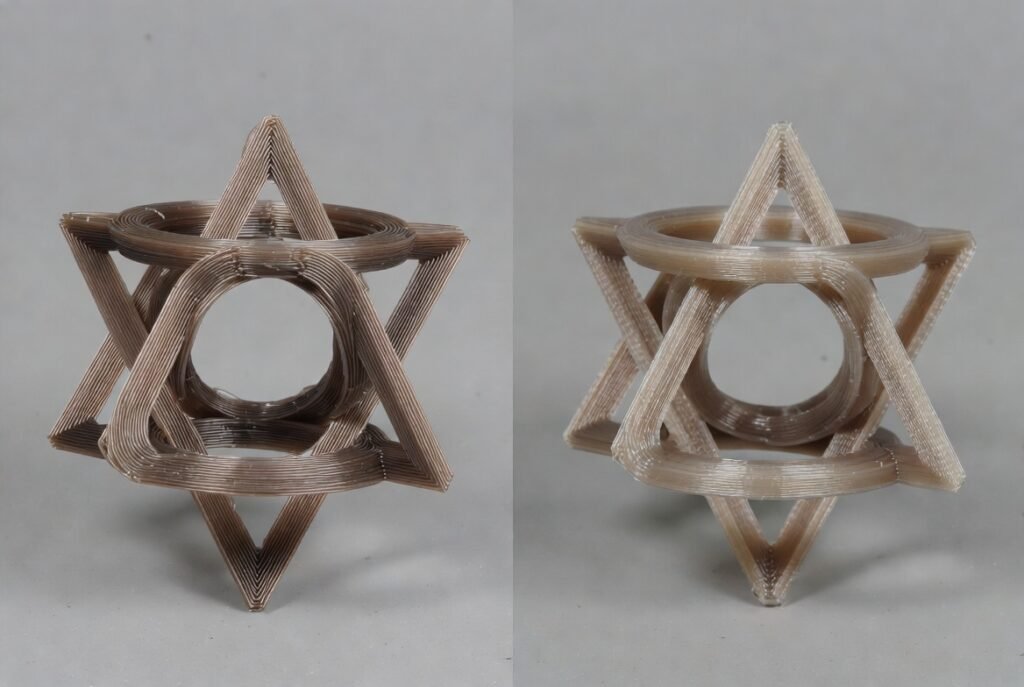
    PVB (polyvinyl butyral) filament is designed to soften and smooth when exposed to isopropyl alcohol (IPA), letting you remove 3D-print layer lines without sanding. Use 91% or 99% IPA for the best results — 70% works but is noticeably slower and can leave a cloudy residue. The three main methods are direct spray/brush (fastest, ~10–30 minutes), a short immersion bath (a few minutes, with close monitoring), and vapor smoothing in a sealed container (1–4 hours, most even finish). Always work in a well-ventilated space with gloves, and let parts cure fully before handling.

    PVB filament is popular among 3D printing hobbyists and makers because its layer lines can be removed easily with isopropyl alcohol. This guide covers the practical methods that work, the safety steps that matter, and the mistakes that most often ruin a print.

    Key Takeaways

    • PVB is specifically formulated to react with isopropyl alcohol — this is a well-documented, intentional property of the material (popularized by filaments like Polymaker PolySmooth), not a workaround
    • 91–99% IPA gives faster, more predictable results than 70% rubbing alcohol
    • Immersion baths typically run several minutes to reach a smooth finish, not just seconds — always test on a scrap piece first since exact timing varies by wall thickness and print settings
    • Never pour used isopropyl alcohol down a drain; store and dispose of it properly, since it’s a flammable organic solvent

    What PVB Filament Is and Why Isopropyl Alcohol Works

    PVB is a 3D printing filament formulated to print with settings similar to PLA while remaining soluble in isopropyl alcohol. When the surface contacts IPA (commonly sold as 91% or 99% isopropyl alcohol), the outer layer softens and the layer lines merge. The result is a smooth, often shiny or semi-transparent finish without mechanical sanding.

    This is a genuinely different mechanism from how other common filaments are finished: PLA generally resists alcohol smoothing entirely, PETG responds poorly, and ABS is typically smoothed with acetone instead. Matching the solvent to the filament matters — isopropyl alcohol on PVB is a deliberate, well-established pairing, not an improvised technique.

    Three main techniques exist:

    • Direct application (spray or brush)
    • Short immersion bath
    • Vapor smoothing in a sealed container

    Higher-purity isopropyl alcohol (91% or preferably 99%) produces faster and more consistent results than 70% solutions. Always work in a well-ventilated area and wear nitrile gloves. Pricing for filament and alcohol varies by brand and retailer — check current product details before purchasing.

    Real-World Scenarios: Different User Needs

    The best method depends on part size, desired finish, and available workspace.

    User Type Typical Parts Preferred Method Time Required Notes
    Light users (occasional hobby prints) Small decorative items, miniatures Spray bottle or brush 10–30 minutes Simple, low equipment
    Medium users (regular makers) Vases, lampshades, functional prototypes Immersion + light wipe 15–45 minutes Balanced control and speed
    Heavy / production users Multiple or large aesthetic parts Vapor chamber 35 minutes–several hours Most uniform finish, scalable
    Transparency-focused users Clear or translucent models Controlled spray or vapor 20–60 minutes + drying Multiple light coats often needed

    Light users can achieve good results with a spray bottle and paper towels. Larger or high-detail parts benefit from vapor methods that treat all surfaces evenly.

    Step-by-Step Methods to Smooth PVB with Isopropyl Alcohol
    Safety first

    Work outdoors or under a fume hood if possible. Wear gloves and eye protection. Keep isopropyl alcohol away from open flames — it’s flammable. Allow parts to dry fully before handling, and never pour used IPA down a drain; let it evaporate in a safe container or dispose of it as you would other flammable solvents.

    Method 1: Direct Spray or Brush Application (fastest for most users)

    1. Print and cool the part completely. Remove supports and clean loose filament.
    2. Place the part on a disposable surface.
    3. Fill a clean spray bottle with 91% or 99% isopropyl alcohol.
    4. Lightly mist the surface from 6–8 inches away, or apply with a soft brush perpendicular to the layer lines.
    5. Wait 30–60 seconds for the surface to soften. Gently wipe excess with a lint-free cloth if needed.
    6. Allow the part to dry 15–30 minutes. Repeat 1–3 times for deeper smoothing.
    7. Let the part cure fully (several hours to overnight) until no longer tacky.

    Method 2: Short Immersion Bath

    1. Pour enough high-purity isopropyl alcohol into a glass or chemical-resistant container to cover the part.
    2. Dip the print, checking progress every couple of minutes rather than relying on a single fixed time — full immersion smoothing commonly takes several minutes to reach a good finish, though thin-walled or highly detailed parts can soften much faster, so test on a scrap piece first.
    3. Remove, shake off excess, and place on a drying rack.
    4. Monitor closely — over-soaking can round fine details, cause sagging, or make the surface temporarily soft and slightly tacky to the touch.
    5. Dry thoroughly in open air.

    Method 3: Vapor Smoothing (most uniform results)

    1. Choose a sealed container large enough for the part (plastic tub with tight lid or glass jar).
    2. Place paper towels or cotton balls soaked in isopropyl alcohol in the bottom or on the sides — don’t let them touch the print.
    3. Suspend or place the print so vapors can circulate freely.
    4. Seal the container. Check every 30–60 minutes. Smoothing typically takes roughly 35 minutes to a few hours depending on temperature, alcohol strength, and part geometry.
    5. Remove the part and air-dry completely, generally for at least two hours before handling.

    Many users combine a light spray after vapor treatment for final gloss. Experiment on test prints first, since results vary with print settings, wall thickness, and exact filament formulation.

    Practical Tips & Common Mistakes

    Tips that deliver consistent results:

    • Use 91% or 99% isopropyl alcohol — lower concentrations slow the process and leave more residue
    • Print with slightly higher flow or thicker walls if you plan aggressive smoothing, since surface material will be partially dissolved
    • Work in a warm environment (room temperature or slightly above) to speed vapor action
    • For transparent parts, apply multiple light coats rather than one heavy dose
    • Store smoothed parts away from moisture until fully cured
    • Test small sections or sacrificial prints before treating finished models

    Common mistakes that ruin prints:

    • Using 70% isopropyl alcohol and expecting fast results — it works slowly and can leave a cloudy film
    • Allowing liquid alcohol to pool in crevices, which softens details unevenly
    • Leaving parts in a vapor chamber too long, causing loss of sharp edges or dimensional accuracy
    • Handling the print while still tacky, transferring fingerprints or dust
    • Skipping ventilation and working in a closed room — isopropyl alcohol vapors are strong and flammable
    • Assuming every PVB brand behaves identically — some formulations respond faster than others
    • Pouring used IPA down a drain instead of disposing of it properly

    When these points are observed, the process becomes reliable and repeatable.

    Conclusion

    PVB filament offers an accessible way to achieve smooth, professional-looking 3D prints using ordinary isopropyl alcohol. Whether you prefer a quick spray, a monitored dip, or controlled vapor treatment, the core principle stays the same: controlled surface dissolution followed by thorough drying. Light users can start with a spray bottle; more demanding applications benefit from vapor chambers for even results. Always prioritize ventilation, high-purity alcohol, proper disposal, and test pieces. Check the specific recommendations from your filament manufacturer, since formulations and optimal techniques can differ slightly. With careful application, layer lines disappear and the print gains a polished, often translucent finish suitable for display or functional aesthetic parts.

    FAQs

    What strength of isopropyl alcohol works best for PVB?

    91% or 99% isopropyl alcohol produces the most reliable and fastest results. 70% solutions work more slowly and may leave residue.

    How long should I leave a part in a vapor chamber?

    Start checking after 30–60 minutes. Many parts reach a good finish within about 35 minutes to a few hours, depending on part size and alcohol strength. Remove as soon as the desired smoothness is reached to preserve detail.

    How long should an immersion bath take?

    Longer than you might expect — often several minutes rather than seconds, though this varies by wall thickness and part detail. Check progress frequently rather than committing to one fixed time, and always test on a scrap piece first.

    Can I smooth PVB prints that contain supports or complex geometry? Yes, but vapor methods treat all exposed surfaces more evenly than brushing. Remove supports first and monitor thin features closely.

    Will smoothed PVB parts remain strong?

    The bulk strength is largely retained, but the surface is slightly altered. Allow full curing time before applying mechanical stress. Some users note a temporary tackiness that disappears after thorough drying.

    Is vapor smoothing safer than acetone methods used for ABS?

    Isopropyl alcohol is generally considered less aggressive than acetone, but proper ventilation, gloves, and fire safety still apply. Never use near open flames.
  • How to Set Up an ISP Whitelist Free Today

    How to Set Up an ISP Whitelist Free Today

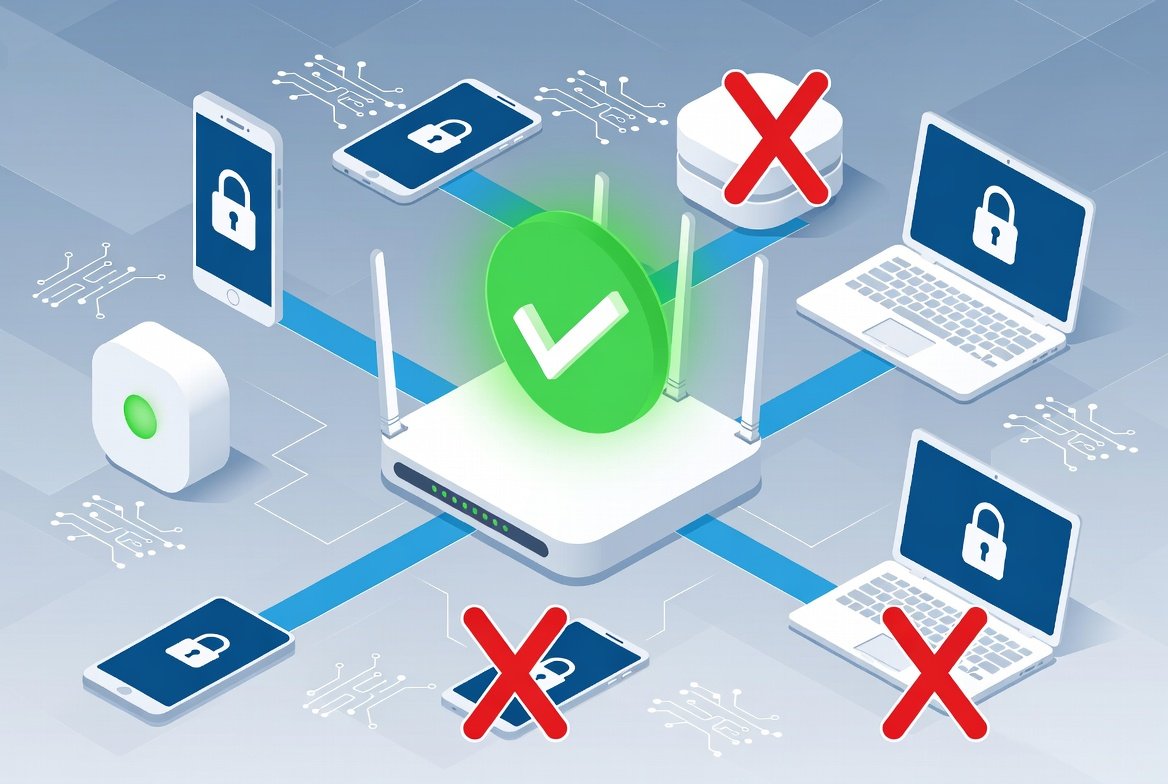
    An ISP whitelist (MAC address filtering set to “Allow” mode) restricts your home network to only the specific devices you approve, using tools already built into your router or gateway at no extra cost. Set it up by logging into your gateway’s admin page, finding the MAC filtering or access control section, adding each trusted device’s MAC address, and switching the mode to “Allow.” It takes under 30 minutes and works on most major providers’ equipment — though menu paths and behavior vary by gateway model, so check your specific device’s current interface.

    An ISP whitelist lets you control exactly which devices can connect to your home network through the router or gateway provided by your internet service provider. Setting one up costs nothing and takes only a few minutes using the free tools already built into most American ISP equipment. This guide covers the general setup process used by most residential gateways. Menu names and available features may vary depending on your ISP, gateway model, and firmware version.

    Key Takeaways

    • MAC address filtering set to “Allow” mode restricts your network to only approved devices — it’s free and built into most residential gateways
    • Add every current device before switching the filter on, or you’ll lock yourself out
    • Exact menu paths vary by provider and even by gateway model within the same provider — check your specific device
    • Treat this as one security layer, not a replacement for a strong password — MAC addresses can be spoofed by determined users

    What an ISP Whitelist Actually Is

    An ISP whitelist (also called MAC address filtering in Allow mode) is a list of approved device hardware addresses stored in your modem or gateway. Only devices whose unique MAC address appears on that list can join your Wi-Fi or wired network. Everything else is blocked at the router level.

    This feature is available on nearly all residential gateways supplied by major providers. You don’t need to buy extra software or pay for a higher plan — the setting lives in the free admin interface that comes with your equipment.

    Key points:

    • It works at the local network level, not by contacting your ISP’s central systems
    • It uses the permanent MAC address burned into each device’s network adapter
    • Most gateways support both “Allow” (whitelist) and “Deny” (blacklist) modes — for the strongest control, use Allow mode and add only the devices you trust
    • The list is limited (often 32–64 entries), so plan carefully if you have many devices

    Real-World Scenarios: Who Benefits from an ISP Whitelist

    Different households face different security and access needs.

    Household / User Type Typical Devices Main Concern How an ISP Whitelist Helps Limitations
    Light user (1–2 people) Phone, laptop, one smart TV Occasional unknown device joins Blocks random neighbors or guests instantly Few devices make setup fast
    Standard family (3–5 people) Multiple phones, tablets, consoles, smart speakers Kids’ friends or visitors connecting without permission Keeps only approved family devices online Must update list when new devices arrive
    Remote worker / hybrid Work laptop, personal devices, printer Protecting work data on shared Wi-Fi Prevents unauthorized local access Does not replace strong passwords or a VPN
    Smart-home heavy Cameras, lights, thermostats, hubs (15+ devices) Unknown IoT devices joining Locks network to known hardware only List length limits may require prioritization
    Shared or multi-tenant space Roommates or temporary guests Frequent new devices Easy temporary addition and removal Requires regular maintenance

    These scenarios reflect common residential patterns. An ISP whitelist adds a useful layer of control without monthly fees.

    Step-by-Step: How to Set Up an ISP Whitelist

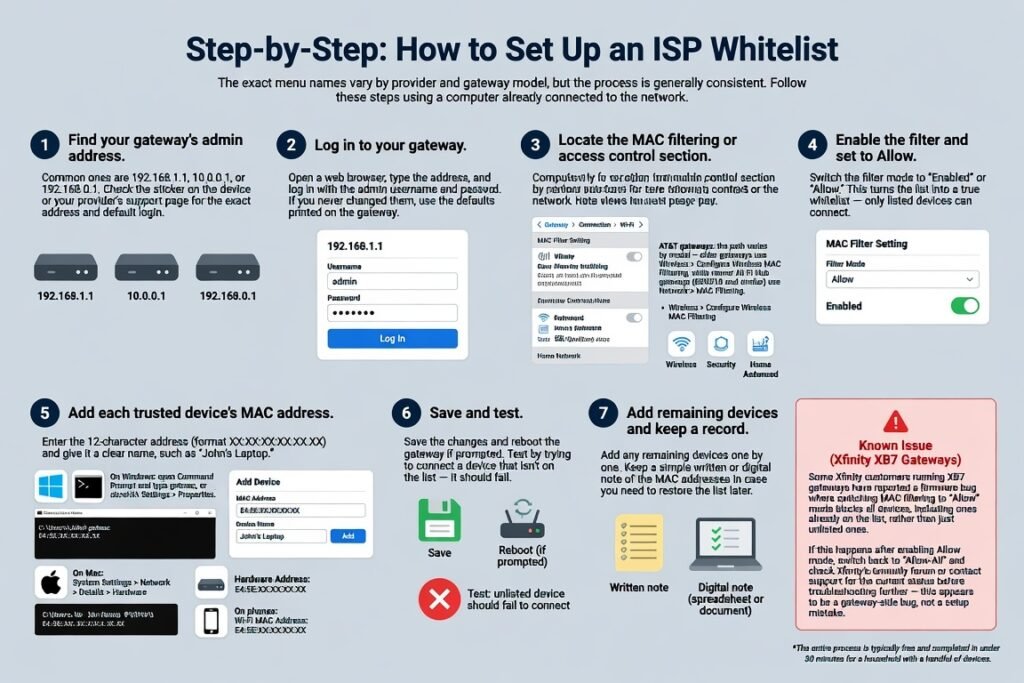
    The exact menu names vary by provider and gateway model, but the process is generally consistent. Follow these steps using a computer already connected to the network.

    1. Find your gateway’s admin address. Common ones are 192.168.1.1, 10.0.0.1, or 192.168.0.1. Check the sticker on the device or your provider’s support page for the exact address and default login.
    2. Open a web browser, type the address, and log in with the admin username and password. If you never changed them, use the defaults printed on the gateway.
    3. Locate the MAC filtering or access control section.
    • Xfinity gateways: Gateway > Connection > Wi-Fi, then scroll to MAC Filter Setting.
    • AT&T gateways: the path varies by model — older gateways use Wireless > Configure Wireless MAC Filtering, while newer All-Fi Hub gateways (BGW210 and similar) use Home Network > MAC Filtering.
    • Other providers: look under Wireless, Security, Advanced Settings, Firewall, or Home Network.
    1. Switch the filter mode to “Enabled” or “Allow.” This turns the list into a true whitelist — only listed devices can connect.
    2. Add each trusted device’s MAC address:
    • On Windows: open Command Prompt and type getmac, or check Network Settings > Properties.
    • On Mac: System Settings > Network > Details > Hardware.
    • On phones: Settings > About Phone / Wi-Fi details.
    • Enter the 12-character address (format XX:XX:XX:XX:XX:XX) and give it a clear name, such as “John’s Laptop.”
    1. Save the changes and reboot the gateway if prompted. Test by trying to connect a device that isn’t on the list — it should fail.
    2. Add any remaining devices one by one. Keep a simple written or digital note of the MAC addresses in case you need to restore the list later.

    The entire process is typically free and completed in under 30 minutes for a household with a handful of devices.

    A known issue to watch for (Xfinity XB7 gateways): some Xfinity customers running XB7 gateways have reported a firmware bug where switching MAC filtering to “Allow” mode blocks all devices, including ones already on the list, rather than just unlisted ones. If this happens after enabling Allow mode, switch back to “Allow-All” and check Xfinity’s community forum or contact support for the current status before troubleshooting further — this appears to be a gateway-side bug, not a setup mistake.

    Practical Tips That Make the Whitelist Reliable

    • Update the list whenever you buy a new device or replace an old one — a forgotten entry is the most common reason people turn the feature off
    • Use “Allow” mode rather than “Deny.” Deny mode still leaves the network open to any unknown device not explicitly blocked
    • Pair the whitelist with a strong Wi-Fi password (WPA3 if available) and change the default admin login — the whitelist is one layer, not the only layer
    • For temporary guests, add their device, then remove it after they leave; some gateways support temporary access
    • If you use a separate personal router behind the ISP gateway, apply the whitelist there for better control, and keep the ISP gateway in bridge mode when possible
    • Test the setup from a device that isn’t on the list before you rely on it

    Common Mistakes People Make

    Enabling the filter before adding every device. Result: you lock yourself or family members out. Fix: add all current devices first, then turn the filter on.

    Assuming MAC filtering is unbreakable. MAC addresses can be spoofed by determined users. Treat the ISP whitelist as a useful barrier against casual or accidental connections, not airtight security.

    Forgetting wired devices. Some gateways apply the filter only to Wi-Fi. Check whether Ethernet ports are also controlled, and add those MAC addresses if needed.

    Using the wrong MAC address. Phones and laptops often show both Wi-Fi and Bluetooth or randomized addresses. Use the permanent Wi-Fi MAC, not a temporary one.

    Never reviewing the list. Over time the list fills with old devices. Periodically clean out entries that no longer exist.

    Conclusion

    Setting up an ISP whitelist is one of the simplest free security upgrades available to residential internet users. By restricting network access to only the devices you approve, you reduce the chance of unwanted connections without spending money or changing plans. Follow the steps for your specific gateway, keep the list current, watch for known gateway bugs like the Xfinity XB7 issue above, and combine it with a strong password for solid everyday protection. The feature is already sitting in your equipment — activate it today and gain immediate control over who can join your network.

    FAQs

    Is an ISP whitelist completely free?

    Yes. It uses the built-in tools on your existing ISP gateway or router. No extra subscription or hardware is required.

    Will an ISP whitelist slow down my internet?

    No. The filter checks MAC addresses at connection time and doesn’t affect data speeds once a device is allowed.

    What happens if I lose access after enabling the whitelist?

    Connect a computer via Ethernet if the filter doesn’t apply to wired ports, or perform a factory reset on the gateway and rebuild the list carefully.

    Can I set up an ISP whitelist on any major provider’s equipment?

    Most major providers, including Xfinity, Spectrum, AT&T, and Verizon, include MAC filtering on their residential gateways. Check your specific model’s support page for the exact menu path, since it varies even between gateway models from the same provider.

    Does an ISP whitelist protect against internet threats?

    It only controls which devices can join your local network. It doesn’t replace antivirus software, strong passwords, or careful browsing habits.