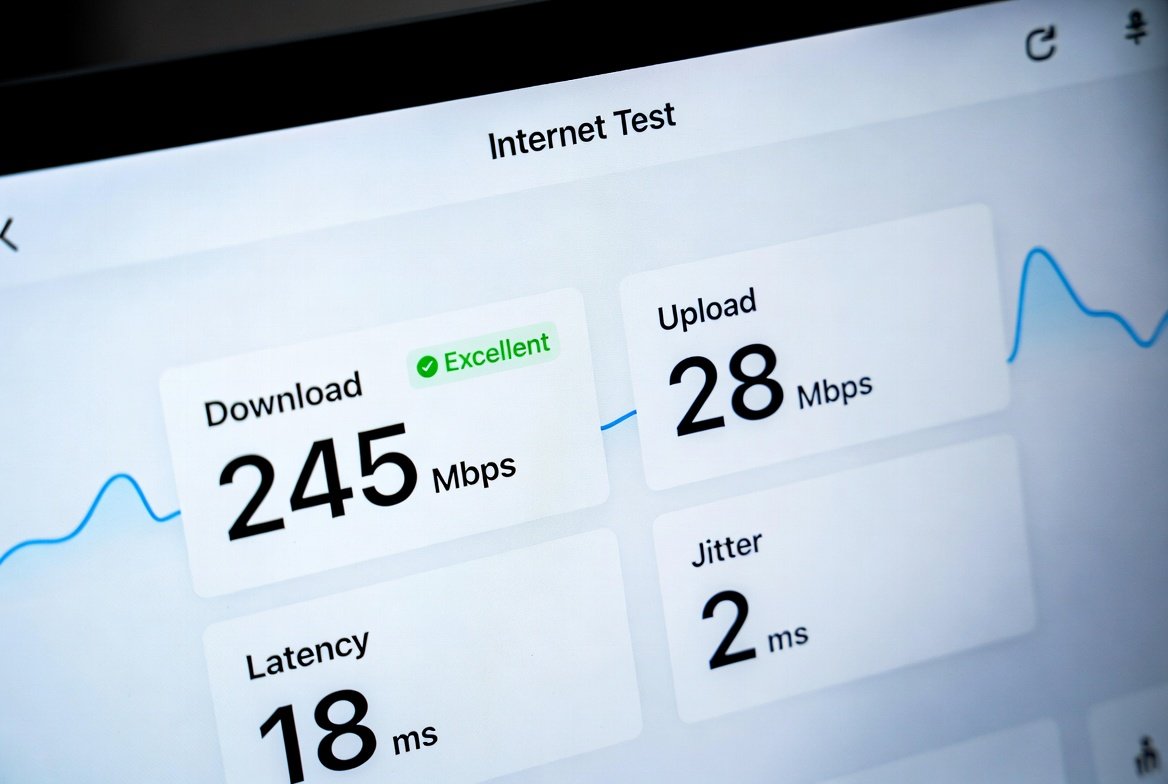
The Speakeasy Internet Speed Test gives U.S. users a clear, independent way to check download speed, upload speed, latency, jitter, and overall connection quality. It runs directly in your browser at speakeasy.net/speedtest and requires no software install. This guide shows exactly how to run it, interpret the numbers, and fix common problems so you get results you can trust.
Key Takeaways
- It’s a free, independent (non-ISP) speed test that runs entirely in the browser
- It measures download, upload, latency, jitter, and gives an overall quality score
- For accurate results: use Ethernet, close background apps, and average three runs
- A “license expiration notice” usually means a caching issue — clearing your browser cache fixes it
What the Speakeasy Internet Speed Test Actually Measures
The Speakeasy Internet Speed Test is a free HTML5 browser-based tool operated by Fusion Connect (the company that now owns the Speakeasy brand). It sends packets of data between your device and selected test servers to measure real performance.
Key metrics it reports:
- Download speed (Mbps) – how fast data reaches your device
- Upload speed (Mbps) – how fast data leaves your device
- Latency (ms) – round-trip delay
- Jitter (ms) – variation in latency
- Connection & Line Quality Score – overall rating (for example, Excellent, Good, Fair)
Unlike many ISP-provided tests, this one acts as a third-party check. It automatically picks an optimal server based on current network conditions rather than forcing the closest city. You can also manually choose a city from the dropdown if you prefer. Results appear in seconds, and the tool stores recent history on desktop or tablet so you can export a CSV file.
Real-World Scenarios: What Speeds Different U.S. Households Actually Need
Internet needs vary widely. A single light user and a multi-device family will see very different “good enough” numbers. The table below uses typical U.S. household patterns and shows realistic targets you can compare against your Speakeasy Internet Speed Test results.
| User Type | Typical Activities | Recommended Download | Recommended Upload | Latency Goal | Notes |
|---|---|---|---|---|---|
| Light user (1–2 people) | Email, browsing, SD video | 25–50 Mbps | 5–10 Mbps | Under 50 ms | Basic plans usually suffice |
| Standard family (3–4 people) | HD streaming, homework, Zoom | 100–300 Mbps | 15–30 Mbps | Under 40 ms | Multiple simultaneous streams |
| Remote worker / hybrid | Video calls, large file uploads, cloud apps | 150–500 Mbps | 25–50 Mbps | Under 30 ms | Symmetric or near-symmetric helps |
| Gamer / streamer | Online gaming + 4K or live streaming | 200–600 Mbps | 20–40 Mbps | Under 25 ms | Low jitter matters most |
| Small home office / multi-user | VoIP, cloud storage, security cameras | 300 Mbps+ | 50 Mbps+ | Under 20 ms | Consider dedicated options if upload lags |
These are practical benchmarks based on common U.S. usage patterns, not marketing claims. Run the Speakeasy Internet Speed Test during your normal busy hours for the most relevant numbers.

Step-by-Step: How to Run an Accurate Speakeasy Internet Speed Test
Follow these steps for reliable results every time.
- Open a modern browser (Chrome, Edge, Firefox, or Safari – use the latest version) and go to https://www.speakeasy.net/speedtest.
- Close every other browser tab and quit bandwidth-heavy apps (cloud backups, streaming, downloads, VPN if possible).
- Prefer a wired Ethernet connection. If you must use Wi-Fi, stand close to the router and avoid 2.4 GHz if 5 GHz or 6 GHz is available.
- Optionally open the city dropdown under the Start button and select a server. The tool usually picks a solid one automatically after a quick latency check.
- Click Start (or the equivalent button). Wait 30–40 seconds while the test runs download, upload, latency, and jitter measurements.
- Record the results: download, upload, latency, jitter, and the quality score. Click “Test Again” two more times and average the three runs.
- On desktop or tablet, open “Your Test History” to review past results or export the CSV.
If the test fails to load or shows a license notice, clear your browser cache, make sure you are on the exact official URL, and temporarily lower firewall or ad-blocker strictness.
Practical Tips That Actually Improve Accuracy
- Test at different times of day. Evening congestion is common on many U.S. cable networks.
- Restart your modem and router before testing if speeds look unusually low.
- Disable any VPN or proxy during the test; they add latency and can throttle throughput.
- Run the test from more than one device (laptop and phone) to rule out a single-device problem.
- Compare your Speakeasy Internet Speed Test numbers with your ISP’s advertised plan speeds. Consistent shortfalls of 20 % or more deserve a call to the provider.
- For business or heavy upload needs, pay attention to the quality score and jitter more than raw download alone. High jitter ruins VoIP and video calls even when download looks fine.
Common Mistakes People Make (and How to Avoid Them)
Mistake 1: Testing over Wi-Fi while standing far from the router. Result: You measure Wi-Fi weakness, not the internet connection. Fix: Use Ethernet or move closer.
Mistake 2: Leaving background apps running. Result: Inflated latency and reduced throughput. Fix: Close everything first.
Mistake 3: Running only one test. Result: A single spike or dip misleads you. Fix: Average three tests.
Mistake 4: Assuming the ISP’s own speed test is more accurate. Result: ISP tests can route traffic preferentially. Fix: Use an independent tool like the Speakeasy Internet Speed Test as a cross-check.
Mistake 5: Ignoring upload and quality score. Result: Video calls stutter even when download looks great. Fix: Check all metrics, especially if you work from home or use cloud services.
Conclusion
The Speakeasy Internet Speed Test remains a straightforward, independent tool for households and small offices that want honest numbers. By following the steps above, averaging multiple runs, and comparing results against the real-world needs of your household, you get data you can act on—whether that means restarting equipment, adjusting Wi-Fi settings, or contacting your provider. Run the test when it matters most (during your peak usage) and keep a simple log of results. That small habit prevents most surprises and helps you decide when an upgrade is actually worth it.
FAQs
1. Is the Speakeasy Internet Speed Test free and safe to use?
Yes. It is free, requires no account or download, and runs entirely in the browser over HTTPS.
2. Why does my Speakeasy Internet Speed Test result differ from my ISP’s test?
Different servers, routing paths, and testing methods produce different numbers. Independent tests like this one often give a more realistic picture of everyday performance.
3. Does the Speakeasy Internet Speed Test work on mobile phones?
Yes. The page is mobile-friendly, though history and CSV export work best on desktop or tablet.
4. What quality score should I aim for?
“Excellent” or “Good” is ideal for most home and small-office uses. Consistent “Fair” or lower scores, especially with high jitter, usually signal a problem worth investigating.
5. How often should I run the Speakeasy Internet Speed Test?
Once a month under normal conditions is enough. Run it more often if you notice slowdowns, after equipment changes, or when evaluating a new plan.
Leave a Reply