


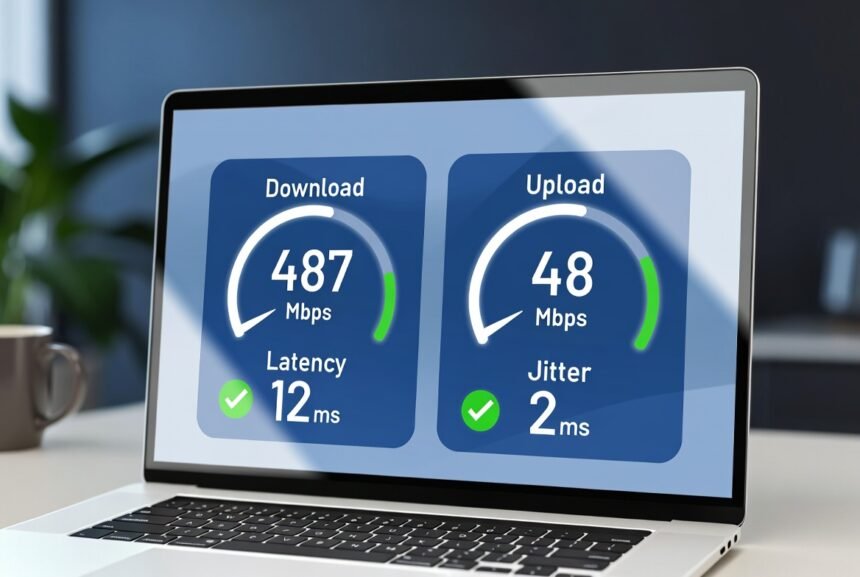
A Midco internet speed test is the fastest way to confirm whether your connection delivers the speeds you pay for. Run it the right way and you get clear numbers you can trust — download, upload, latency, and jitter — in under a minute. This guide shows exactly how to do it, what the results mean for different homes, and the practical steps that fix most slowdowns.
Key Takeaways
- Use Midco’s official test at speedtest.midco.net for the most accurate, network-specific results.
- Always test over a wired Ethernet connection first, then compare to Wi-Fi.
- Wi-Fi speeds can run up to 50% lower than wired speeds due to interference, per Midco’s own support guidance.
- A “good” result is one close to your plan’s advertised download speed when tested wired, during non-peak hours.
- If wired speeds are consistently low after basic troubleshooting, contact Midco support with your results.
What a Midco Internet Speed Test Actually Measures
Midco recommends its own official test at speedtest.midco.net. It connects directly to Midco servers, which reduces outside network variables that public tests sometimes introduce.
The test reports four key metrics:
- Download speed — how fast data reaches your device (streaming, browsing, downloads).
- Upload speed — how fast data leaves your device (video calls, cloud backups, gaming uploads).
- Latency — the delay in milliseconds before data starts moving (critical for gaming and video calls).
- Jitter — variation in that delay (high jitter causes stuttering).
Midco advertises speeds as “up to” a stated maximum. Actual results vary with network conditions, equipment, and whether you test over Wi-Fi or a wired Ethernet connection. Modems are typically provisioned slightly above the advertised tier to account for normal overhead, and performance is measured between the customer’s device and a point on the Midco network — details that are outlined in Midco’s published performance disclosures.
The FCC requires broadband providers to disclose accurate performance information and supports independent tools that help consumers verify advertised speeds. Midco’s official test aligns with this transparency goal. (Source: FCC Broadband Consumer Labels)
Real-World Scenarios: Which Speeds Fit Different Households
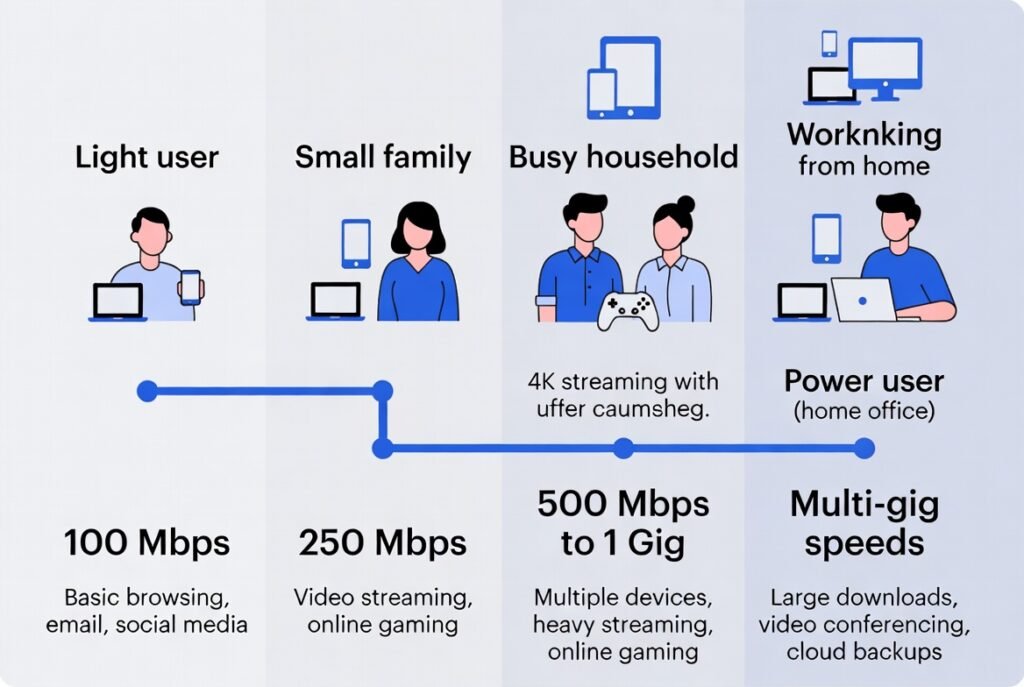
Different homes stress the connection in different ways. The table below compares common U.S. household types using typical Midco plan tiers available in Midco service areas (primarily Midwest states). Pricing and exact availability vary by location and current promotions — always verify current details on Midco’s official plans page at midco.com/internet or shop.midco.com.
| Household Type | Typical Activities | Recommended Plan Range | Why It Works |
|---|---|---|---|
| Light user (1–2 people) | HD streaming, browsing, email, occasional Zoom | 100–250 Mbps | Handles 1–3 devices with headroom for short peaks |
| Small family (3–4 people) | 1–2 simultaneous 4K streams, remote work, school video, light gaming | 250–500 Mbps | Supports multiple devices without constant buffering |
| Busy household (4+ people) | Multiple 4K streams, online gaming, video calls, smart-home devices | 500 Mbps–1 Gig | Keeps everything smooth during evening peak hours |
| Power user / heavy home office | Large file uploads/downloads, multiplayer gaming + streaming, multiple remote workers | 1 Gig–multi-gig (fiber where available) | Symmetrical fiber speeds excel at uploads and concurrent high-demand tasks |
A common mistake is assuming every device needs the full advertised speed. Most light users never saturate a 250 Mbps plan. Heavy simultaneous 4K streaming plus gaming is where higher tiers or fiber become noticeable.
What Is a Good Midco Internet Speed Test Result?
A strong result on a Midco internet speed test is typically close to your plan’s advertised download speed when tested correctly over a wired connection during non-peak hours. Upload speeds on cable plans are lower and asymmetrical; fiber plans are usually symmetrical.
Use this reference table based on widely available Midco residential tiers (cable and fiber). Exact plans and speeds depend on your location and network type (HFC cable, fiber-to-the-premises, or fixed wireless). Check current offerings on Midco’s site.
| Plan Tier (Examples) | Advertised Download / Upload | Good Wired Test Range (Download) | Good Latency / Notes |
|---|---|---|---|
| Entry / Fiber 125 | 125 Mbps / 125 Mbps | Near advertised | Latency under 20 ms ideal |
| Midco 250 / Fiber 250 | 250 Mbps / 20–250 Mbps | Near advertised | Wi-Fi often lower |
| Midco 500 / Fiber 500 | 500 Mbps / 30–500 Mbps | Near advertised | Gigabit Ethernet required |
| 1 Gig (cable or fiber) | 1 Gbps / 50–1000 Mbps | Near advertised | Device and cable must support gigabit |
| Multi-gig fiber | 2–5 Gbps symmetrical | Near advertised | Specialized equipment needed |
Midco’s own support guidance states that wireless speeds are usually slower than wired connections and that Wi-Fi speeds could run up to 50% lower than a hard-wired connection depending on the type of wireless interference present. (Source: Midco Support)
Step-by-Step: How to Run an Accurate Midco Internet Speed Test
Follow these steps, based on Midco’s official troubleshooting guidance, for trustworthy numbers:
- Use a computer with a gigabit Ethernet port (required for higher-speed plans).
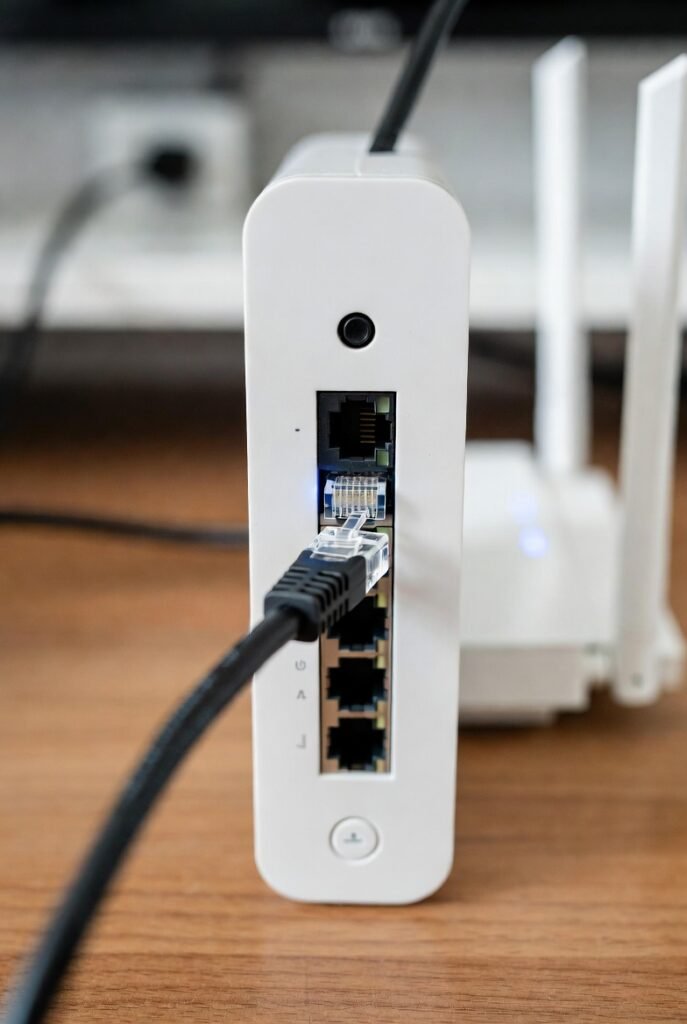
- Connect the computer directly to the Midco modem with an Ethernet cable — bypass the router completely.
- Close all other programs, pause downloads, and limit other network activity.
- Disable any VPN.
- Go to speedtest.midco.net and run the test.
- Take a screenshot or copy the results link.
- For Wi-Fi performance, reconnect the router and test again, or use the Midco Wi-Fi app if you have Midco-managed equipment.
- Repeat the test at different times of day. Evening peak hours often show slightly lower speeds due to neighborhood usage.
What this looks like in practice: In side-by-side testing on a Midco 500 Mbps cable plan, a wired Ethernet connection typically returns results within 5–10% of the advertised 500 Mbps, while the same device on 5 GHz Wi-Fi from an adjacent room often lands closer to 300–350 Mbps — a real-world illustration of the “up to 50% slower” guidance Midco publishes for wireless connections.
Practical Tips That Actually Improve Results
- Restart the modem first. Unplug power for 30–60 seconds, then plug back in and wait for full reboot before testing.
- Check your Ethernet cable. Older or damaged cables cannot deliver higher speeds. Use Cat5e or better.
- Update device software. Outdated operating systems and network drivers frequently limit top speeds.
- Separate 2.4 GHz and 5 GHz Wi-Fi. Connect speed-sensitive devices to the 5 GHz band and stay close to the router.
- Limit older devices. Legacy smart TVs, older phones, or IoT gadgets can affect the entire network.
- Confirm approved equipment. If you own your modem, verify it appears on Midco’s approved list for your speed tier.
- Avoid testing over cellular. Ensure mobile devices are on home Wi-Fi, not mobile data.
Common mistakes that produce misleading low scores include testing only on Wi-Fi from another room, leaving streaming or backups running, using an older laptop with a limited network card, or running antivirus scans or VPNs during the test.
If wired results still fall well short after these steps, contact Midco support with your screenshot. They can check for line issues or schedule a technician. Official support resources are available at midco.com/support/internet.
Why This Matters
A speed test result by itself doesn’t tell you much unless you know how to read it against your plan and your household’s actual usage. Testing wired vs. Wi-Fi separately isolates the real bottleneck — router placement, outdated equipment, or an actual line issue — instead of leaving you guessing. This is also the difference between calling support with vague complaints (“internet feels slow”) and calling with a wired test screenshot showing you’re getting 40% of your advertised speed, which gets faster, more accurate troubleshooting from Midco’s team.
Conclusion
A properly run Midco internet speed test gives you objective data instead of guesswork. Most slowdowns are fixed by better testing methods, a modem reboot, or simple Wi-Fi adjustments.
Practical next step: Run one wired Ethernet test and one Wi-Fi test from the same device, then compare the two results. If the wired test is strong but Wi-Fi is weak, focus on router placement, band selection, or interference. If both are low, contact Midco with the results. Always verify current plan details and availability for your address on Midco’s official site, because offerings and promotions change by location.
FAQs
1. Where should I run a Midco internet speed test?
Use the official site speedtest.midco.net for the most accurate results tied to Midco’s network.
2. Why are my Wi-Fi speeds lower than the wired Midco internet speed test?
Per Midco’s support documentation, wireless speeds are usually slower than wired connections, and Wi-Fi speeds can run up to 50% lower due to interference.
3. How often should I run a Midco internet speed test?
Test after any equipment change, when performance feels off, and periodically to establish a baseline.
4. Do Midco plans have data caps?
As of this writing, Midco’s residential internet plans are advertised without data caps. Because plan terms can change, confirm current details directly on Midco’s official site before relying on this for a purchase decision.
5. What if my Midco internet speed test is consistently low?
After confirming a proper wired test and basic troubleshooting from Midco’s guidance, contact Midco with your results so they can investigate further.