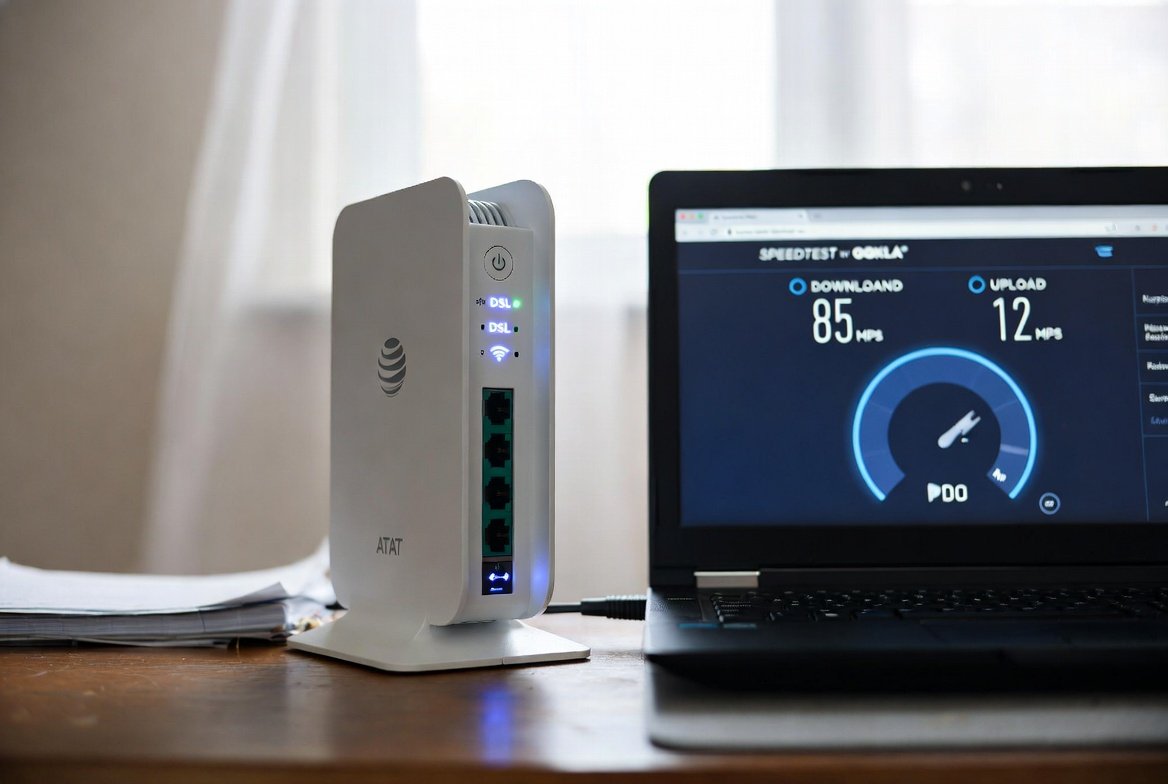
Slow AT&T internet is usually caused by Wi-Fi conditions, an overloaded gateway, too many connected devices, or a cable/fiber issue — not the plan itself. Start by restarting the gateway (unplug for 60 seconds), then run a wired speed test directly into the gateway with Ethernet to isolate whether the problem is your line or your Wi-Fi. Most cases resolve within the first few steps below; if a wired test still falls far short of your plan after that, it’s time to request a technician visit.
If your AT&T plan advertises high speeds yet everyday performance feels sluggish, you’re dealing with a common issue. Many customers search for ways to fix AT&T internet that seems fast on paper but feels very slow in practice, especially when wired tests fall short of the plan rate or Wi-Fi drops under load. This guide walks through the most frequent causes and the practical fixes that resolve them.
Key Takeaways
- Always separate gateway performance from Wi-Fi/device performance with a wired test first — this single step identifies most bottlenecks
- The AT&T gateway (commonly BGW320 series) handles modem and router duties together, and can become a bottleneck under heavy device load
- AT&T gateways use a Device Access Code (found on the unit’s sticker), not a traditional username/password, to access protected settings
- If wired speeds stay well below your plan after restarts, cable checks, and settings review, it’s time for a technician — the issue is likely optical signal or hardware, not something fixable at home
Why AT&T Internet Can Feel Slow Even on Fast Plans
AT&T Fiber and other AT&T internet plans often advertise 300 Mbps, 500 Mbps, 1 Gbps, or multi-gig rates. What you actually experience depends on several factors: the gateway hardware, Wi-Fi conditions, number of connected devices, cable quality, and occasional network-side issues.
The AT&T gateway (commonly models such as the BGW320 series) handles both modem and router functions. Under heavy device load, or after certain firmware updates, it can become a bottleneck. Wi-Fi speeds almost always lag behind a direct Ethernet connection. Protocol overhead, older device network cards, and interference further reduce real-world results. Multiple simultaneous streams, gaming, video calls, and smart-home devices all share the available bandwidth.
The gap people notice is usually between the plan’s advertised maximum and what a specific device receives at a given moment. A proper diagnosis starts by separating gateway performance from device or Wi-Fi performance.
Real-World Scenarios: How the Problem Shows Up
Different households notice the slowdown in different ways.
| Household Type | Typical Symptoms | Likely Main Causes | Expected Impact of Fixes |
|---|---|---|---|
| Light users (1–2 people, few devices) | Occasional buffering on one stream or slow page loads | Weak Wi-Fi signal, outdated device, or temporary congestion | Often resolved by restart + better placement |
| Medium family (3–4 people, 8–15 devices) | Evening slowdowns, video calls drop, multiple streams struggle | Too many Wi-Fi clients, gateway overload, channel interference | Restart + reduce devices + Ethernet for key devices usually restores speed |
| Heavy / power users (many devices, gaming, remote work, 4K streams) | Speeds far below plan even on Ethernet, frequent lag | Gateway limitations, firmware quirks, fiber signal issues, or third-party router misconfiguration | May need advanced steps or a technician visit |
| Mixed remote-work + streaming | Upload feels especially limited during calls | Upload prioritization, QoS settings, or cable quality | Wired connection + QoS check helps most |
In light-use homes, the problem is frequently environmental. In heavier homes, the gateway itself or the fiber drop becomes the limiting factor. Measuring both the gateway-to-network speed and the device speed is the fastest way to locate the bottleneck.
Step-by-Step Solutions to Fix AT&T Speed Problems
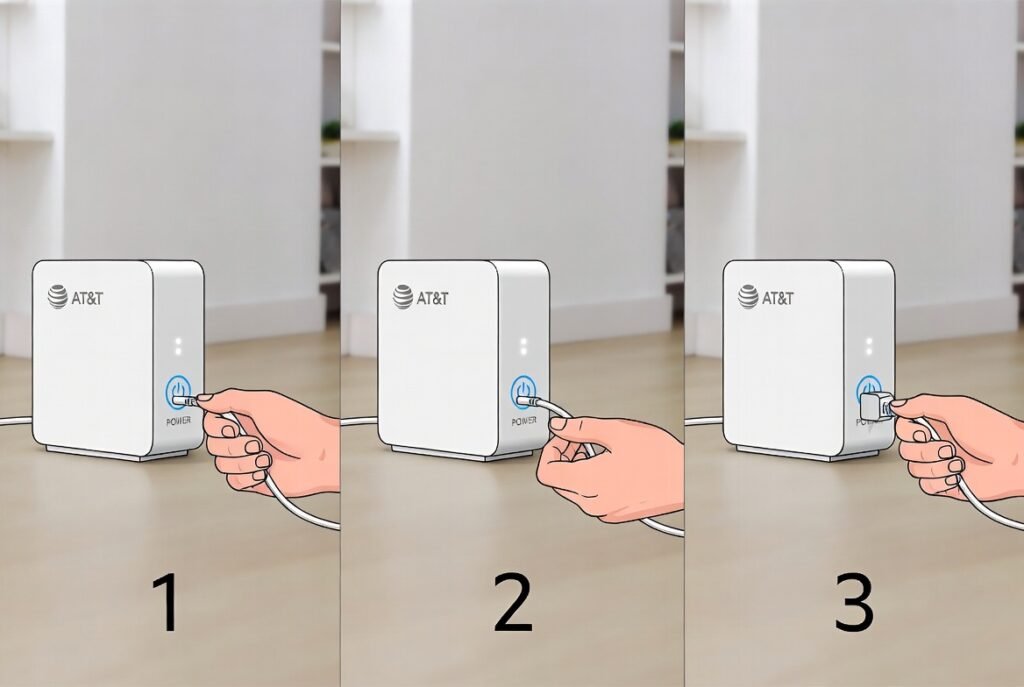
Follow these steps in order — most cases improve within the first four.
1. Confirm there’s no widespread outage
Open the AT&T Smart Home Manager app or visit the AT&T outage checker with your account. If an outage or maintenance window is active, wait it out.
2. Restart the gateway properly
Unplug the power cord from the AT&T gateway (not just the wall outlet if a power strip is used). Wait a full 60 seconds. Plug it back in and allow 5–10 minutes for all lights to stabilize. Power, Broadband, and Service lights should be solid green or white, depending on your model.
3. Run accurate speed tests
Use the Smart Home Manager app or AT&T’s official speed test page to check the gateway’s connection to the network. Then test from a device: for the most reliable result, connect a computer directly to the gateway with a known-good Ethernet cable (Cat 5e or better) and close background apps. Compare both numbers to your plan’s advertised rate — a large gap between gateway and device points to Wi-Fi or device limits.
4. Optimize Wi-Fi and reduce load
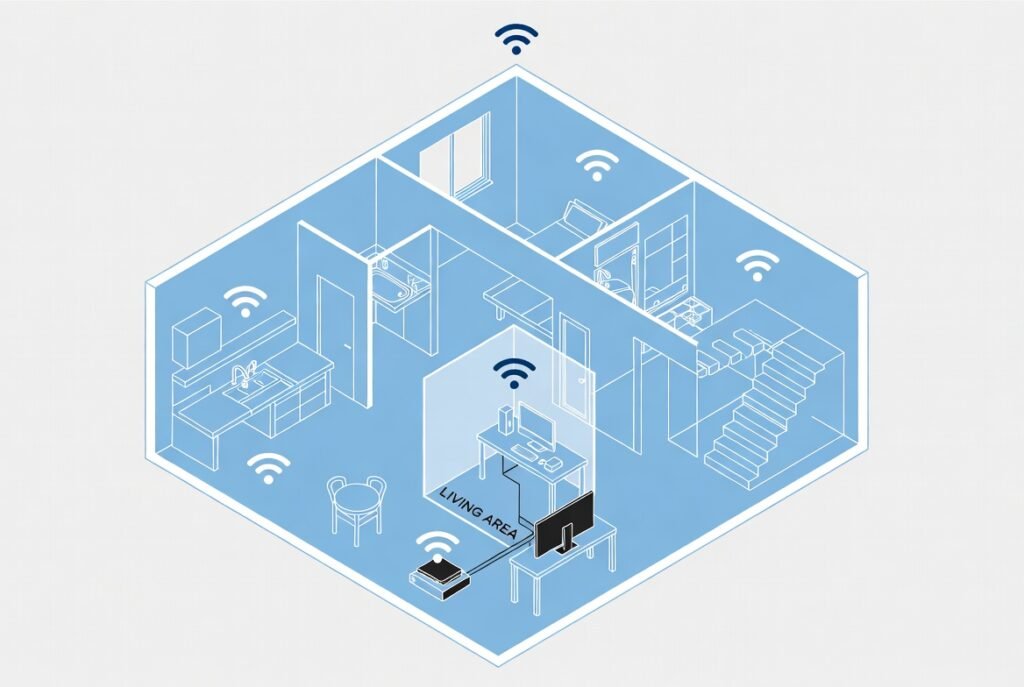
Move the gateway to a central, elevated location away from microwaves, cordless phones, and thick walls. Disconnect or turn off unused devices. Prefer the 5 GHz or 6 GHz band for phones, laptops, and streaming devices. Use Ethernet for gaming consoles, desktop PCs, and smart TVs whenever possible.
5. Check cables and physical connections
Inspect the fiber jumper (if visible) and all Ethernet cables for kinks or damage. Reseat the fiber connector carefully if you’re comfortable doing so — dirty or loose fiber ends are a known cause of sudden slowdowns.
6. Review gateway settings and firmware
Open a browser and go to http://192.168.1.254 — use http://, not https://. Status pages load without any login. For protected settings like firewall, NAT, or IP Passthrough, you’ll be asked for the Device Access Code, a 12-character code printed on the gateway’s sticker — AT&T gateways don’t use a traditional admin username and password. Check for available firmware updates and disable any unnecessary QoS or prioritization features that may be limiting throughput. If you use a third-party router, place the AT&T gateway in IP Passthrough (bridge-style) mode and let the third-party router handle Wi-Fi — this avoids the double-NAT issue that silently causes slowdowns.
7. Escalate if needed
If wired speeds remain well below the plan after the above steps, contact AT&T support and request a technician. Provide your test results — techs can check optical signal levels, replace the gateway, or repair the fiber drop.
Practical Tips & Common Mistakes
Tips that consistently improve results:
- Test speeds at different times of day — peak evening hours can reveal congestion that daytime tests miss
- Keep the Smart Home Manager app installed; it provides signal-strength maps and device lists that help identify weak clients
- For multi-gig plans, confirm your computer’s network adapter and Ethernet port support the higher speeds — many older laptops are limited to 1 Gbps
- Restart the gateway every few weeks as preventive maintenance
- When adding a mesh system, ensure it’s compatible with AT&T’s gateway, or use IP Passthrough correctly
Common mistakes that keep speeds low:
- Relying only on Wi-Fi speed tests and assuming the entire connection is bad — always verify with a wired test first
- Leaving dozens of smart-home devices connected 24/7 without checking which ones consume bandwidth
- Using old or damaged Ethernet cables that can’t sustain gigabit speeds
- Placing the gateway in a cabinet, basement, or behind a TV where heat builds up and signal is blocked
- Installing a third-party router without putting the AT&T gateway into passthrough mode, creating double-NAT and slowdowns
- Ignoring firmware updates or status lights that indicate a problem
Many customers troubleshooting a fast plan that feels slow discover the issue was simply an overloaded gateway or a weak Wi-Fi signal, rather than a line problem.
Conclusion
Slow performance on an AT&T high-speed plan is rarely permanent. Most cases stem from gateway load, Wi-Fi conditions, device limitations, or simple configuration issues that can be fixed at home. Start with a proper restart and accurate wired-versus-wireless tests, then work through placement, device count, and cable quality. If those steps don’t restore speeds close to your plan, AT&T support and a technician visit can address fiber or hardware problems. Consistent monitoring with the Smart Home Manager app and occasional restarts keep the connection performing as expected. Always verify current plan details and any equipment policies directly with AT&T, since offerings vary by location.
FAQs
Why does my AT&T speed test show full speed on the gateway but low speed on my phone?
The gateway test measures the connection to AT&T’s network. Device tests include Wi-Fi limitations, distance, interference, and the device’s own network hardware. Move closer, switch to 5 GHz/6 GHz, or use Ethernet to isolate the difference.
How often should I restart my AT&T gateway?
A full power cycle every two to four weeks is a good preventive habit. Restart immediately whenever speeds drop suddenly or after a firmware update.
Can too many devices cause AT&T speeds to drop?
Yes. Each active device shares the available bandwidth and can overload the gateway’s Wi-Fi radios. Disconnect unused devices or move high-demand ones to Ethernet.
Should I replace the AT&T gateway with my own router?
Many users do for better Wi-Fi coverage. Place the AT&T unit in IP Passthrough mode first, so the third-party router handles routing and Wi-Fi without double-NAT issues.
When do I need a technician for AT&T Fiber slowdowns?
If wired Ethernet tests remain far below your plan speed after restarts, cable checks, and settings review, request a service visit. Optical signal problems or a failing gateway usually require professional diagnosis.
Leave a Reply